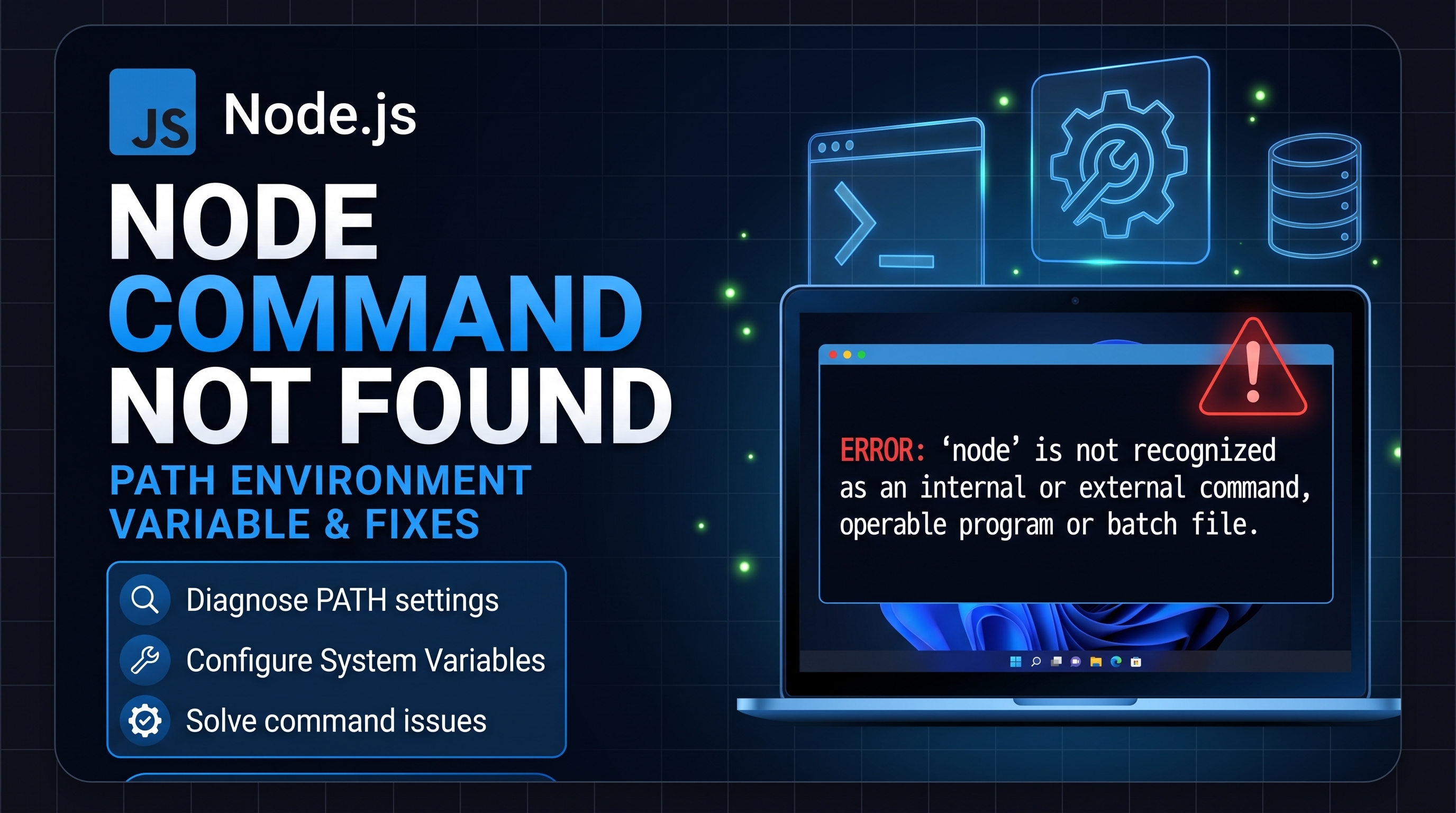
How to Fix "'node' is not recognized as an internal or external command"
The error 'node' is not recognized as an internal or external command, operable program or batch file appears on Windows when the Command Prompt or PowerShell cannot find the executable binary for Node.js. This typically happens right after installation when the system's PATH environment variable is missing the path to the Node.js directory, or when the active terminal session has not refreshed its environment settings.
Method 1: Restart Your Terminal and System
If you installed Node.js while your terminal was open, the active session will not recognize the updated environment variables automatically.
- Close all open Command Prompt, PowerShell, and VS Code terminal windows.
- Reopen your terminal and run:
node -v - If the command still fails, restart your PC to force Windows to reload the global system path table.
Method 2: Verify the Node.js Installation Directory
Make sure that Node.js was properly installed on your machine before manually modifying environment paths.
- Open File Explorer.
- Navigate to the default installation directory:
C:\Program Files\nodejs\(orC:\Program Files (x86)\nodejs\for 32-bit installations). - Confirm that
node.exeandnpm.cmdexist inside this folder. - If the directory does not exist, download the official installer from nodejs.org and complete the setup.
Method 3: Add Node.js Manually to the Windows PATH Variable
If Node.js is present in your file system but the command line cannot locate it, add its directory to the system environment variables manually.
Step-by-Step Instructions:
- Press
Win + R, typesysdm.cpl, and press Enter to open System Properties. - Click on the Advanced tab, then click the Environment Variables... button at the bottom.
- Under the System variables section (bottom box), locate the variable named Path and select it.
- Click Edit... to view the list of existing path entries.
- Click New on the right side and paste the full path to your Node.js folder:
C:\Program Files\nodejs\ - Click OK on all three open dialog boxes to save the configuration changes.
Method 4: Verify the Resolution
To confirm that Node.js and its package manager are globally accessible, open a brand-new Command Prompt window and execute:
node -v— returns the installed Node.js runtime version (e.g.,v20.11.0).npm -v— returns the installed NPM package manager version.